
Mostrando entradas con la etiqueta Technology. Mostrar todas las entradas
Mostrando entradas con la etiqueta Technology. Mostrar todas las entradas
martes, 25 de junio de 2013

martes, 6 de noviembre de 2012
HP Cloud is here!!
As you know, we have a new player in the ground. HP has started to lunch its Cloud solution and you can register now and start to play with it. The technology they are using it is based on OpenStack, they have implemented some open source building blocks and added all the parts required to build a Cloud service similar to the Amazon one.
You can create a test account to start to play with HP Cloud. As you can see on HP Cloud site:
“New customers get a $20 credit per month for the first three billing months to try any service or combination of services.”
Access to https://www.hpcloud.com/and click on Get Started Now button:
Fill the form with your date, any credit card information is requested:
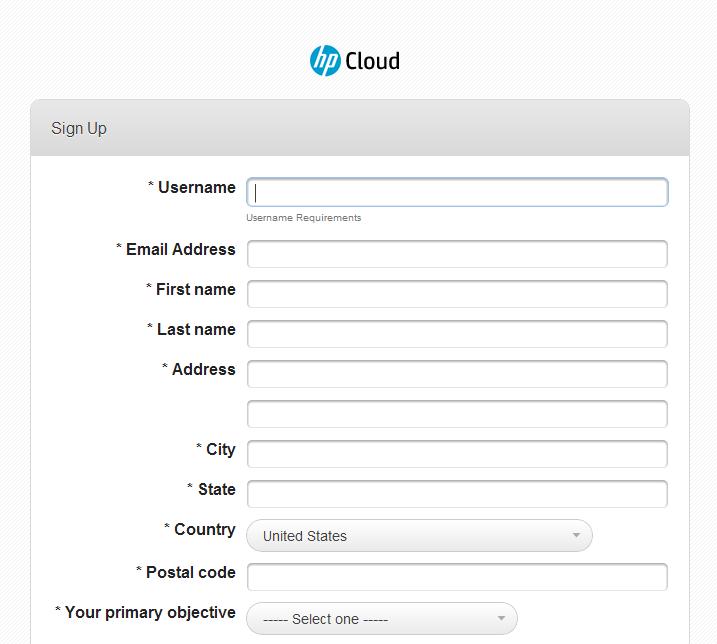
Click on Create Account button to finalize the account creation process.

You will receive a mail like that to confirm your registration:


You will receive a mail like that to confirm your registration:

Clicking on the link, you will be redirected to login page and could start working with you HP Cloud account:


Enjoy it!!
jueves, 26 de abril de 2012
Today Dinner? Wine and iPad
One of the surprises I had during my last travel to Chile last month was when we went to dinner to Ritz-Carlton hotel in Santiago de Chile. When we request the Wine list, we received an iPAD!!!
Entaste provides you an application that enables you to navigate on the wine cellar of the restaurant where you are. You can navigate by type of wine (red or white), by harvest, by stock, by region, by price, etc. You have a short description about each wine and some of them has a long description including an oenologist comment (and I suppose that this is the business… vineyards should pay to include this additional information). If you are interesting in some of the wines, you can enter your mail address, and an oenologist will send to you a wine card with the information.
For restaurants, Entaste application is an additional value for their clients at the same time that enables them to apply changes to the wine list in an easiest and cheaper way.
Entaste has known how to use the technology to revolutionize a sector and provide value to their clients.


martes, 27 de diciembre de 2011
Incredible Things That Happen Every 60 Seconds On The Internet
Very interesting article from Business Insider

jueves, 20 de octubre de 2011
Microsoft Research and its “Touch Technology”
Two gods examples about the future that Microsoft is building…
OmniTouch: Make Every Surface a Touch Screen
“We wanted to capitalize on the tremendous surface area the real world provides,” explains Benko, of the Natural Interaction Research group. “The surface area of one hand alone exceeds that of typical smart phones. Tables are an order of magnitude larger than a tablet computer. If we could appropriate these ad hoc surfaces in an on-demand way, we could deliver all of the benefits of mobility while expanding the user’s interactive capability.”

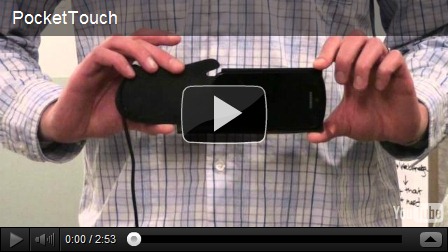
PocketTouch: Through-Fabric Input Sensing
“People already try to interact with a computing device through fabric,” says Saponas, of the Computational User Experiences group. “Think of when you try to reach through your pocket to the slider that silences your phone. We wanted to take a different spin by asking: Can we use a higher-bandwidth touch surface to provide a wider range of actual input?”
lunes, 17 de octubre de 2011

martes, 5 de julio de 2011
10 reasons why you shouldn't quit IT
A very good list from TechRepublic.com to stay in IT world if you are thinking on change your career. I agree with all the points, but the first one is not applicable in Spain jajajajaja
http://www.techrepublic.com/blog/10things/10-reasons-to-stay-in-it/2572?tag=nl.e101
What do you think?
domingo, 28 de noviembre de 2010
Tech-Ed 2010 – First Impressions
Finally, Tech-Ed 2010 has started this Monday with the KeyNote session presented by Brad Anderson and the previous registration, tomorrow we could start to enjoy the sessions that Microsoft has prepared for this year. Many sessions about everything related with Cloud makes the event very, very interesting for me. This year instead to create a post for day I will try to group the posts based on the topics I would like to learn during the week: Cloud, System Center, Datacenter Optimization, Virtualization, and off course, Office 365 (Office, Exchange, Lync and SharePoint in the Cloud).
Regarding to the Keynote session, it was very interesting and we could see what are the pilars of the Microsoft strategy for the next future. System Center is the center of all related to Datacenter and Private Cloud implementation and management, BPOS or Office 365 is their bet for Cloud services, Windows Phone 7 a very serious competitor for iPhone and the rest of last generation phones, and Windows Azure Platform.

Evidently, many other topics were introduced and discussed during the presentation. Windows 7 and Windows Server 2008 R2 Service Pack 1 RC has been lanched with RemoteFX and Dynamic Memory as two of the most destacable features. These features will improve the VDI implementation using Microsoft operating systems. And we could see some presentations about Windows Azure platform and new features.

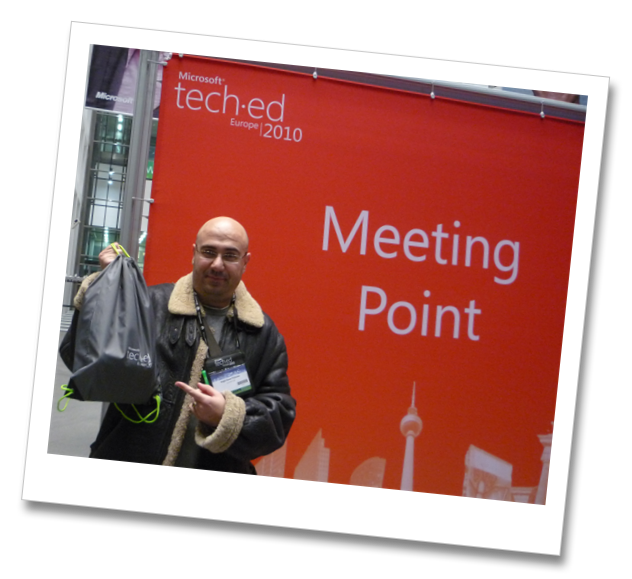
Regarding to the registration, we had some questions about the backpack that Microsoft would give to us this year. Every year they should give a very useful backpack to take your laptop, notebook and gifts from partners to the event; one year they gift a shoulder bag, other one a roller bag,… well finally the mistery was resolved… Microsoft gives to us an spectacular “Bread Bag”… Thank you Microsoft.
domingo, 7 de noviembre de 2010
Are you ready for European Tech-Ed 2010?!


Tomorrow will start the Microsoft Tech-Ed Europe 2010 event, we are in Berlin and we are looking forward to attend to the very interesting sessions that Microsoft has prepared for this year. You can see the agenda on the official site http://europe.msteched.com
In the meantime we have visited the city and enjoy the typical places, and evidently the meal and drink (sausages, beer, beer and beer… I love this country!!). I was updating my passport in the Brandenburg Gate so now I can move for the entire city without problems jajajaja See you in Berlin!!!


jueves, 21 de octubre de 2010
SharpBits.NET Tool
If you search on the web you can find many free tools that you can use to work with BITS. As we commented in other blog, BITS has an API in .NET that you can use to create web or form applications to work with BITS. I have downloaded and tested many of them and I can ensure you that you will find the one you are searching, all of them are very easy to use and some of them are very powerfull too but I like one that is very, very simple to use and has a very intuitive interface (perfect for my customers), it is SharpBITS.NET
To download the installer you have to go to www.codeplex.com site, search by “sharpbits.net” and select the first result:

On the SharpBITS.NET page click on Download button on the right, click on I Accept button to accept the license and save the .zip file in your machine:

Extract the .zip file, for example, in D drive. A folder named SharpBITS will be created with the following content:

Now you just need to double click SharpBITS.exe file to load the tool:

To create a new BITS job, right click on Name column to display the context menu. Select Add new job and then Upload or Download depending of the action you want to execute (on this example we have selected Upload):

A new window named Upload (or Download) is displayed, and Files tab is selected:

Double click on the job named Upload to open the Add File window:

Type the URL of your BITS server and the file name, and type the local path and file name (this section is identical if you selected Upload or Download):

Click Add button to add the job.

Then select Authentication tab, type your Enterprise ID in User Name field, type your Password, select SERVER as Authentication Target and NTLM as Authentication Scheme (we have enable Integrated Windows Authentication in our BITS servers), and click Add button:

On Messages tab we could see the message generated by our job when we execute it:

On the Details tab, you can select the Priority of your job (by default it is Normal), and then click on Resume to run your job and start the upload/download process:

SharpB ITS will starts the connection with the server:

If something is wrong the state will change to TransferError. Select Messages tab to see the error message generated (in this example we have typed a bad URL and SharpBITS tool can’t find it):

If it is all right, the Status field will change to Transferring, and if you close the Upload (or Download) window, you could see the Progress of your job:

During the execution you can select the job, right click on it and, on the context menu, change the Priority of the job:


You can Suspend the job and Resume it when you want using this context menu:


When the file has been uploaded (or downloaded) completely, Job appears with this format:

And the transfer is complete.
Enjoy it!
jueves, 16 de septiembre de 2010
BITS + PowerShell: Get the power!
Following with the methods to work with BITS, if your machine is running Windows 7 or you are uploading/downloading files from a Windows 2008 Server, you can use PowerShell commands to work with BITS in the same that we have used the bitsadmin.exe tool.
In this case, we will download an installer file stored in a BITS server to our Windows 2008 server, so the first step is to open the PowerShell window an import the Bits Transfer module:
Import-Module BitsTransfer
Now, a good way to know all the command (or cmdlets) we can use to work with Bits is to run the following command:
Get-Command –Module BitsTransfer
All commands and definitions are displayed:

It seems that the cmdlet that we need is Start-BitsTransfer. If you are not sure, you can run the following command to get a complete description about this cmdlet:
Get-Help Start-BitsTransfer
A complete description including syntax is displayed:

As you can see on the REMARKS section you can use other commands to get more information about this cmdlet. One of these commands is the –examples one:
Get-Help Start-BitsTransfer –examples
You can see 8 different examples about how to use this command to create a Bits job and download/upload files. We will use the following one to download our installer:
Start-BitsTransfer -Source https://myserver.domain.com/SQL2008R2.iso -Destination D:\Installers\SQL2008R2.iso
A green box will appear while you connect with BITS server and download the file:

And a status bar will appear between [ and ] symbols. Evidently, if you are trying to upload/download a file to a protected BITS server, you have to specify your credentials and authentication method in the PowerShell command. You can do it in the following way:
Start-BitsTransfer -Source https://myserver.domain.com/SQL2008R2.iso -Destination D:\Installers\SQL2008R2.iso -Authentication NTLM -Credential "domain\myID"
When you click Enter an authentication window will appears requesting you your password.
As a summary, we need to execute just two PowerShell commands to download a file from a BITS server:
Import-Module BitsTransfer
Start-BitsTransfer -Source <url or path> -Destination <url or path> -Authentication [NTLM, Basic, etc.] -Credential "domain\myID" -TransferType [Upload/Download]
If we want to upload a file the command to use is very similar to the download one but adding the parameter TransferType:
Start-BitsTransfer -Source <url or path> -Destination <url or path> -TransferType <Upload>
As you can see on the examples, you can do the same in many ways playing with the 8 commands that BitsTransfer module offers to us and the rest of commands included in PowerShell.
Next post…How to work with BITS using a GUI tool.
martes, 14 de septiembre de 2010
BITS command-line
One of the ways to upload/download files to a BITS server is using its command line tool, bitsadmin. You have not confuse this command line with the PowerShell cmdlets that you can use in Windows 7 and 2008. Bitsadmin.exe tool is included by default in Windows XP Service Pack 2, Windows Vista and Windows 2003 Server.
To use it you have to open a cmd console and type the commands you want to use. Bitsadmin uses switches to identify the work to perform, the process is very simple: create a job, enter the different parameters (source, destination, user, etc.) and execute the job.
To upload a file, open a CMD window, type the following sentence and click Enter:
Bitsadmin /create /upload <jobName>
Bitsadmin /create /upload UploadISO
A message similar to that will be displayed showing the ID assigned to the job created

Now you have your upload job created so next step is to add to it the file to upload, type a command similar to this one:
Bitsadmin /addfile <jobName> <destination> <file_to_upload>
Bitsadmin /addfile UploadISO https://myServer/ED/SQLR2.iso D:\ISO\SQL_R2.ISO
Now we can add our credentials to the job in case our BITS site implements security:
Bitsadmin /setcredentials <jobName> <authenticationTarget> <authenticationScheme> <user> <password>
Bitsadmin /setcredentials UploadISO SERVER NEGOTIATE dir\myAccount myP@ssword

Now we can put, for example, the priority for our job:
Bitsadmin /priority <jobName> <HIGH, NORMAL, LOW, FOREGROUND>
Bitsadmin /priority UploadISO HIGH

And now we can run our upload job with /resume or /transfer commands:
Bitsadmin /resume UploadISO
Or
Bitsadmin /transfer UploadISO
As you can guess, playing with the different switch you can create and execute a job using just 2 or 3 lines. For example, you could execute the following lines:
Bitsadmin /create UploadR2
Bitsadmin /transfer UploadR2 /upload /priority HIGH https://myServer/ED/SQLR2.iso D:\ISOs\SQLServer2008_R2.ISO
And evidently if you want to download a file instead to upload it, you have to use the switch /download instead of the /upload one.
Bitsadmin /transfer UploadR2 /download /priority HIGH https://myServer/ED/SQL2008R2.iso C:\Installers\mySQLInstaller.ISO
You can get a complete description of the available switch typing:
Bitsadmin /help
Or
Bitsadmin /?
Also you can get a text version on this link from Microsoft MSDN site: http://msdn.microsoft.com/en-us/library/aa362813(VS.85).aspx
But Bitsadmin.exe is not the only tool we can use to work with BITS, we can use PowerShell and/or some free tools that we will see in the next posts.
Suscribirse a:
Entradas (Atom)
Project Mgmt. Professional

AWS Architect

ITIL Fundamentals
